![Plural_Logo_Primary_FullColor@2x.png]](https://help.pluralpolicy.com/hs-fs/hubfs/Plural_Logo_Primary_FullColor@2x.png?width=156&height=42&name=Plural_Logo_Primary_FullColor@2x.png)
Custom Fields let teams capture structured, bill-level analysis directly in Plural—making reporting faster, workflows clearer, and reducing reliance on external trackers and spreadsheets.
🔥 Why this matters: Custom Fields are designed to save time on reporting, support more sophisticated bill-tracking workflows, and keep critical analysis in one place.
Note: Available for Premium customers only.
What Are Custom Fields?
Custom Fields allow your organization to add up to 10 customized bill properties in addition to Tags, Shortnames, and Notes. These fields are structured, editable, and export-ready, making them ideal for tracking workflow progress and generating clean reports without post-processing.
You can also personalize your Table View layout by reordering or hiding columns so the most important workflow and analysis fields are always visible.
Note: Table View configurations affect only your personal view and do not impact other teammates.
Best Practices: Enterprise Workflow Management
Use Custom Fields to capture workflow progress and operational context as bills move through your internal process.
Examples:
- Create a “Reviewed” indicator to flag completed or outstanding work
- Add a “Status” field to show whether a bill is progressing, on hold, or no longer relevant
- Use an “Assignee” field to track bill ownership
- Apply a “Date Tracked” value to capture when analysis began
- Track recurring workflow actions (e.g., meetings held, milestones reached)
These fields make it easy to understand progress at a glance—without maintaining a separate tracker.
Best Practices: Advocacy, Corporate, Law Firms, News Organizations
Use Custom Fields when you need to capture structured analysis that isn’t included in Plural by default and needs to export cleanly.
Examples:
- Add a “Priority” field to categorize urgency or importance
- Create a short “Analysis” field for one-line summaries used in reports
- Track “Likelihood to Pass” for internal projections
- Use “Subtopic” alongside Tags for faster filtering
- Align Custom Fields with external systems like CRMs or spreadsheets
Note: You can maintain different analyses for the same bill by using separate Workspaces.
How to Use Custom Fields
1. Create Custom Fields (Admins Only)
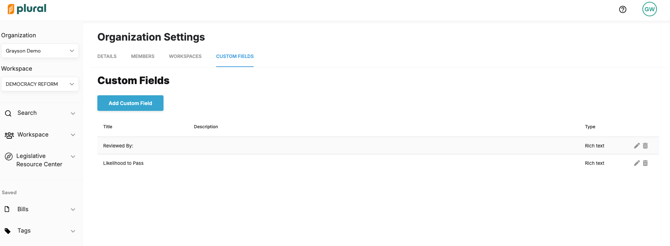
Organization Admins can create Custom Fields in Organization Settings.
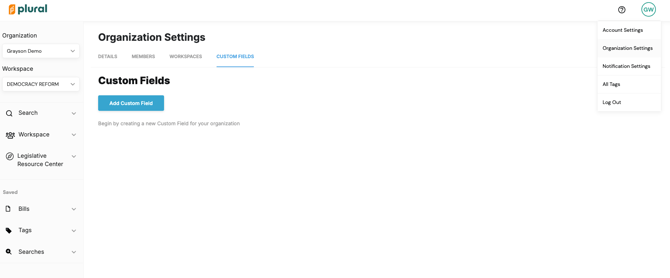
We recommend defining fields based on how data needs to appear in reports or exports, then working backward.
2. Configure Your Table View
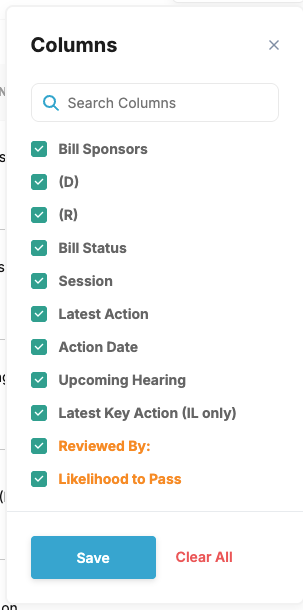
Switch to Table View, click Columns (top right side of the platform), and select which fields you want to display.
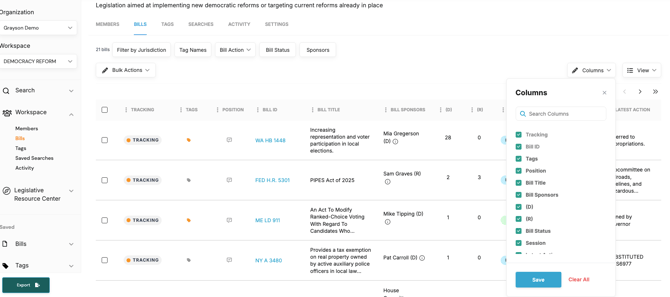
Columns highlighted in orange are the custom columns added to your account.
3. Reorder Columns
Drag column headers left or right to prioritize workflow and reporting fields.
4. Add or Edit Custom Field Values
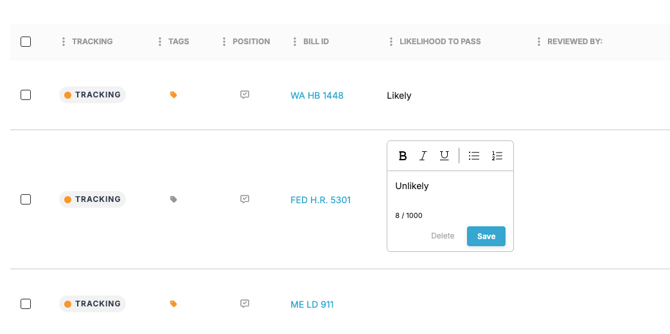
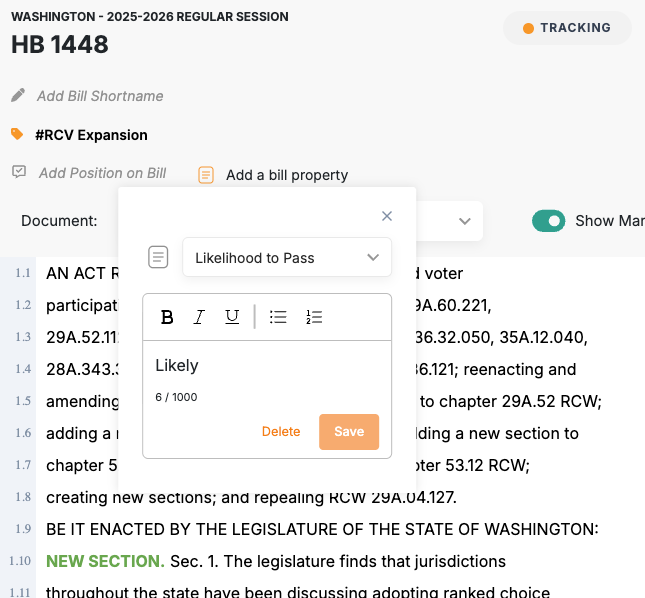
Apply values directly in Table View or from the Bill Detail Page.
All updates appear in the bill’s Activity Feed.
5. Export with Custom Fields
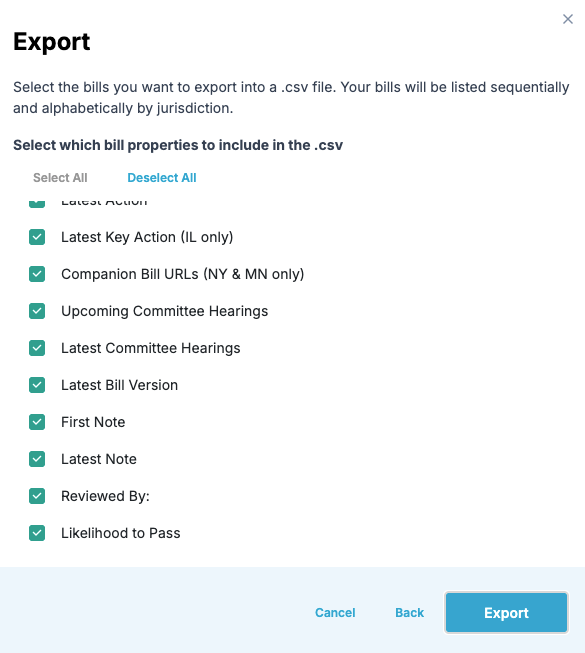
Include Custom Fields as columns when exporting to generate cleaner, report-ready outputs with less manual cleanup.
Note: This feature is only available with a paid plan. Explore plan options >>